Windows tends to be very jealous of files that are not “signed” by official Windows developers, particularly those which were released recently. Since Pencil2D is an open-source project, we don’t have the resources to always sign the software digitally, so in general those apps tend to be blocked even if you can “normally” open the file at some point.
Choosing 32 or 64 Bits
If you are using Windows 11, you should always download the 64 bits version, since it is not available for 32 bits devices. If you use an older version of Windows and are unsure whether you should use the 32 or 64 bits version, please follow this official Microsoft guide to determine the bit architecture of your Windows system.
How to Download Pencil2D
Pencil2D can be downloaded in the download section of our website.
The links there will redirect you to the source repository service over at GitHub.
However in case this does not work, Pencil2D also has mirrors in the source repository service Bitbucket
Unblock the ZIP File Download
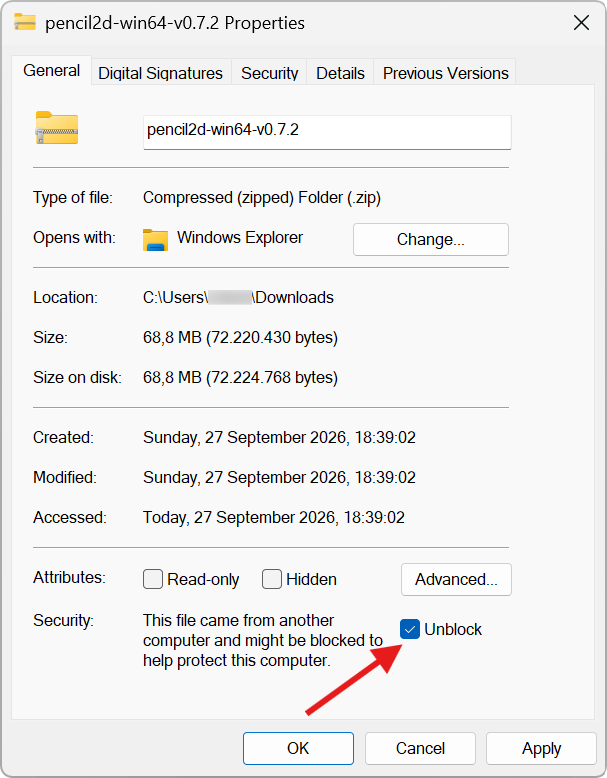
After you download the ZIP file you have to unblock it.
To unblock a ZIP file you have to:
- Right click on the downloaded ZIP file
- Go to file Properties
- Browse to the General tab
- Towards the bottom tick the unblock checkbox
- Press Apply and then OK
- Only then you’ll be able to extract all the files without issues.
Unzipping Pencil2D Download Files
Afterwards please unzip all of the files to your Program Files folder found in your C:\ drive.
To unzip the files please take a look at this guide.
Additional Troubleshooting
If you run into additional problems, like missing MSVCP140.dll, VCRUNTIME140.dll, Qt5Widgets.dll, api-ms-win-crt-runtime-l1-1-0.dll, etc, please see the troubleshooting section below.
Check Your Antivirus Rules
If you have an antivirus software with real-time protection enabled (e.g Kaspersky, Avira, Panda, AVG, etc) to avoid being blocked by real-time scanners you should consider checking the antivirus settings and create a rules exception for both:
- The Pencil2D application folder (where you are extracting the files in)
- We recommend to create a general Pencil2D projects folder to save all your future animation files.
Please refer to your antivirus manual or online reference knowledge base for additional information on how to create these rules.
For a Windows Defender specific procedure please take a look at the Exclusions section in this Microsoft support article.
UAC Permissions Handling
It is possible that the UAC (User Account Control) permission levels are set very high and are not allowing any kind of program or DLL file to be executed on your system (this can affect movie exports too).
Here’s a guide to disable it or at least consider lowering the rating (if you are not the system administrator you’d have to ask them to help or get the password for your computer workstation in order to do this).
Run as Administrator
Make sure you are running Windows as an administrator whenever possible. Otherwise Windows users are allowed to configure individual apps to run with administrator rights.
Consider setting the pencil2d.exe application file (the one with a pencil icon  ) to run as administrator in the file properties.
If you are not the admin, ask your parents or third party system administrator for the password and then set the program application file itself (pencil2d.exe) to run as an admin by following this guide.
Enable Developer Mode
Sometimes installing software in the default mode (developer mode turned off / set to “Sideload apps”) can still prompt issues, so try following this guide to enable developer mode on your device running Windows 10 or later (it works for all editions of Windows including Home).
Troubleshooting
Qt5Widgets.dll / Qt5Multimedia.dll / Qt5Gui.dll / Qt5Xml.dll was not found
- Right click on the file.
- Select
Extract all - Go to the folder you extracted the files to
- Find
pencil2d.exeand double click on it.
MSVCP140.dll / VC_RUNTIME140_1.dll is missing
- On the Pencil2D extraction folder
- Find the
vcredist_x64.exeorvcredist_x86.exe(depending on 64 or 32 bit architecture) - Double click and follow the install instructions.
Note: If you are hesitant about running the installer included with Pencil2D, you can also obtain it directly from Microsoft by downloading the “Microsoft Visual C++ v14 Redistributable” from the “Other Tools, Frameworks, and Redistributables” section at the bottom of this downloaad page.
Universal C runtime api-ms-win-crt-runtime-l1-1-0.dll is missing
For legacy Windows versions (7, 8, 8.1) download and install these windows updates.
Final Words
If you’ve been having issues experiencing your files disappearing or getting corrupted after saving the project file (.pclx) correctly (can’t open them; get error) please follow this guide to a T.
You can also try using the nightly builds which may contain recently issued fixes that partially address this problem.
While we’ll keep working on this and eventually correct these issues, note that these are development versions of the software. While they are run in the same way, and don’t have any extra requirement to be used, they may be more unstable than the official release on our download page.
 Please don’t start your homework or next grand masterpiece with these dev builds, but do test these versions, and let us know if during testing these builds improve your experience when running into the aforementioned problems.